


Abstract
In most systems, Windows login still depends on a single-step authentication process. If someone gets access to your password, they can easily log into your system without any restriction. This makes password-only security weak and risky.
To address this limitation , Multi-Factor Authentication (MFA) in a Windows environment by integrating Active Directory with Duo Security.
With this setup, logging into Windows is no longer just about entering a password. After the password is verified, the user must also approve a login request on their mobile device or enter a one-time passcode. This adds an extra layer of security and significantly reduces the chances of unauthorized access.
This project demonstrates how upgrading from a basic Windows login to a 2FA-enabled system can make everyday systems much more secure and closer to enterprise-level protection.
Objective
- To design and implement a secure authentication system using Multi-Factor Authentication (MFA) in a controlled lab environment
- To integrate Active Directory with Duo Security for centralized identity management and secondary authentication
- To simulate an enterprise-level domain setup using a Windows Server Domain Controller and a client machine
- To enforce an additional layer of security during user logon through Duo Push or One-Time Passcode (OTP) verification
- To analyze the effectiveness of MFA in preventing unauthorized access due to compromised credentials
System Architecture
Components Used-
- Domain Controller (Server 1)
- Installed Windows Server (2019/2022)
- Configured as Domain Controller using Active Directory
- Domain created (e.g., local)
- Responsible for:
- User authentication
- Centralized user management
- Policy enforcement
- Client Machine (Server 2 / Windows 10)
- Joined to the domain (local)
- Used to simulate an end-user system
- Login authentication is performed against Active Director
- MFA Provider Integration
- Duo Security is integrated with Windows Logon
- Adds a second authentication factor during login
- Supports:
- Duo Push (mobile approval)
- One-Time Passcode (OTP)
- Network Configuration
- Both machines are connected to the same virtual network
- Internet access is enabled (required for Duo authentication)
- Proper DNS configuration ensures domain resolution
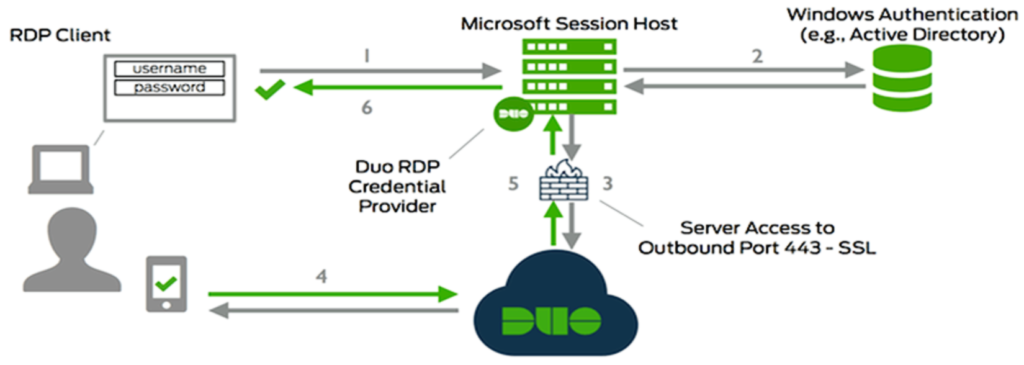
Authentication Flow (How System Works)

Key Architectural Characteristics
- Centralized Authentication: Managed through Active Directory
- Layered Security: Password + MFA verification
- Real-time Validation: Duo communicates over the internet
- Enterprise Simulation: Mirrors real corporate login systems
Why This Architecture Matters
This setup replicates how modern organizations secure access to internal systems. Even if a password is compromised, unauthorized access is prevented due to the second authentication factor enforced by Duo.
Tools & Technologies Used
Core Technologies
- Windows Server 2019
Used to configure the Domain Controller and manage the domain environment. - Active Directory
Implemented for centralized authentication, user management, and domain control. - Duo Security
Integrated to enforce Multi-Factor Authentication (MFA) during Windows logon.
Supporting Tools
- Windows 10 (Client Machine)
Used as an end-user system to test domain login and MFA authentication flow. - Virtualization Software (VMware / VirtualBox)
Used to create and manage the multi-machine lab environment. - Duo Admin Panel (Web Interface)
Used to configure MFA settings, users, and application integration. Networking & Configuration
- Virtual Network Configuration
Ensured both machines are on the same network for domain communication. - DNS Configuration
Required for domain resolution and successful domain joining. - Internet Connectivity
Necessary for Duo Security to perform real-time authentication.
Technical Stack Summary
- Identity Management: Active Directory
- MFA Provider: Duo Security
- Server OS: Windows Server 2019
- Client OS: Windows 10
- Environment: Virtual Lab
- Virtual Network Configuration
Implementation Steps
Step 1: Setting Up Domain Controller
- Installed Windows Server 2019 on Server 1
- Opened Server Manager → Add Roles and Features
- Installed Active Directory Domain Services (AD DS)
- Promoted server to Domain Controller
- Created a new forest (e.g., local)
Outcome: Domain environment successfully created

Step 2: Creating Users in Active Directory
- Opened Active Directory Users and Computers
- Created new users (e.g., testuser)
- Assigned passwords and enabled accounts
Outcome: Users ready for domain authentication
Step 3: Configuring Client Machine & Domain Join
- Installed Windows 10 on Client Machine
- Set DNS to Domain Controller IP
- Opened:
- System Properties → Change Settings → Domain
- Entered domain name (local)
- Provided domain admin credentials
Outcome: Client machine successfully joined to domain
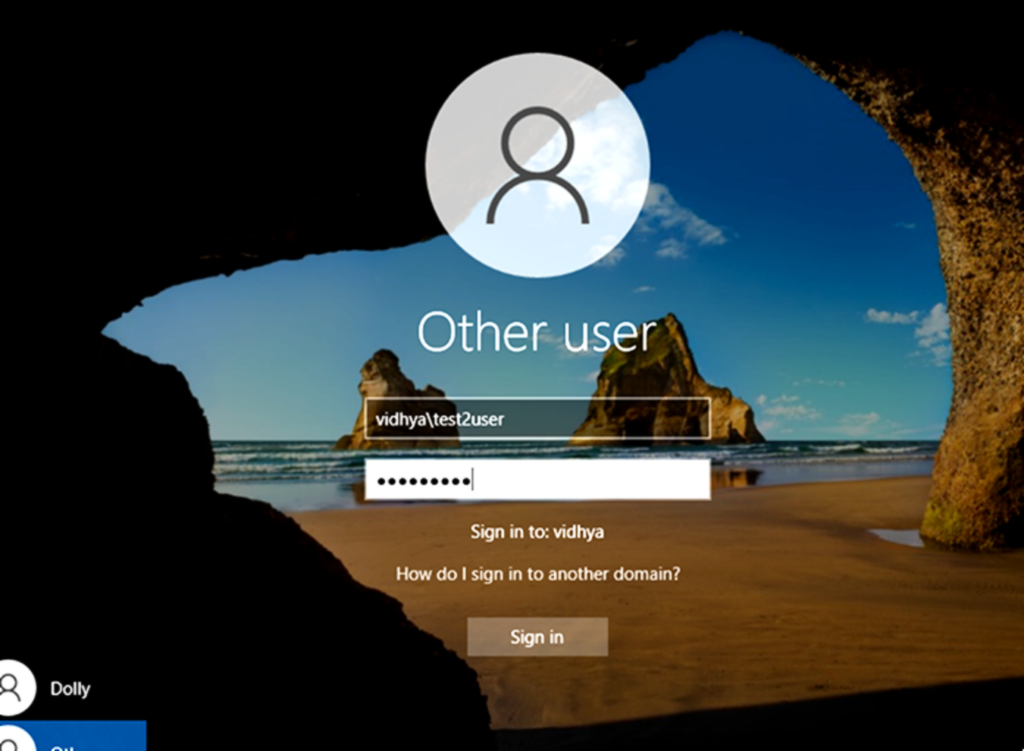
Step 4: Verifying Domain Authentication
- Restarted client machine
- Logged in using:
- CFT\username
- Verified successful login via Active Directory
Outcome: Domain-based authentication working correctly
Step 5: Setting Up Duo Security Account
- Created account on Duo Security
- Navigated to Applications → Protect an Application
- Selected Windows Logon
- Collected:
- Integration Key
- Secret Key
- API Hostname
Outcome: MFA application configured in Duo
Step 6: Installing Duo on Client Machine
- Downloaded Duo Authentication for Windows Logon
- Installed on client system
- Entered:
- Integration Key
- Secret Key
- API Hostname
- Configured options:
- Enable Duo Push
- Fail mode: Safe/Open (based on setup)
Outcome: Duo integrated into Windows login system

Step 7: Enrolling User for MFA
- Linked AD user with Duo account
- Activated device using:
- QR code scan (Duo Mobile app)
Outcome: User enrolled for MFA authentication
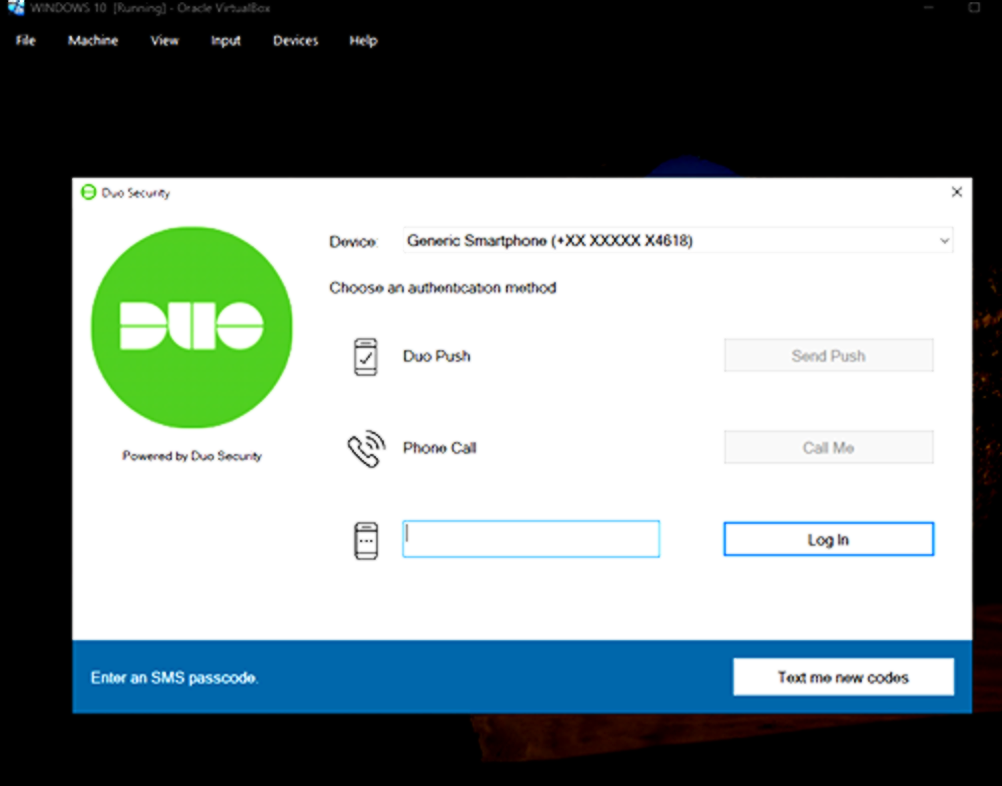
Step 8: Testing MFA Login
- Attempted login using domain credentials
- After password verification:
- Duo triggered second factor
- Approved via:
- Mobile push notification
Outcome: Successful MFA-based login
Step 9: Validation & Security Check
- Tested incorrect password → Access denied
- Tested without second factor → Access denied
- Verified:
- Only authenticated users with MFA can log in
Outcome: System secured with dual-layer authentication
Results
The implementation of Multi-Factor Authentication (MFA) using Active Directory integrated with Duo Security was successfully completed in the virtual lab environment.
- Domain-based authentication was functioning correctly across the network
- MFA was enforced during Windows logon for domain users
- Users were required to approve login requests via Duo Push or OTP
- Unauthorized access attempts without second-factor verification were blocked
- Real-time authentication flow between AD and Duo was established
Final Outcome:
A fully functional enterprise-like authentication system with dual-layer security (Password + MFA) was successfully deployed and tested.
Conclusion
The implementation of Multi-Factor Authentication (MFA) in a Windows-based environment using Active Directory and Duo Security demonstrates a significant improvement in system security compared to traditional password-only authentication.
Standard Windows login mechanisms rely on a single factor (password), which can be vulnerable to compromise. By introducing a second layer of authentication, such as Duo Push or One-Time Passcode (OTP), access control becomes more robust and resistant to unauthorized usage.
This implementation highlights how integrating MFA into domain-based environments enhances identity security, reduces the risk of credential misuse, and aligns with modern cybersecurity practices followed in enterprise systems.
Overall, transitioning from single-factor authentication to MFA transforms a basic Windows login process into a more secure and reliable authentication system suitable for real-world organizational use.
For more details-
https://drive.google.com/drive/folders/1IzcaOVNTtxWnP7_G74NBYZVW4H5SD-ms?usp=drive_link